Getting your first indie HTML5 game off the ground means understanding the foundational web technologies like HTML5 and JavaScript. You’ll also need to pick the right tools – maybe a game engine or a framework – and grasp essential concepts like game loops and how to integrate your visual and audio assets. HTML5 games use JavaScript for all the action and the Canvas API or WebGL to draw everything you see, making them playable right in your web browser.
1. Conceptualize Your First Indie HTML5 Game: From Idea to Scope
The absolute first step, and arguably the most crucial, is to nail down your game concept and its scope. This isn’t just about a vague idea; it’s about clearly defining what your game is, what players do in it, and setting realistic goals. For your first project, keeping it tight is key to actually finishing it. A well-defined concept acts like your compass, guiding every decision and ensuring you’re building something manageable and, most importantly, fun.
> Clearly defining your game’s concept and scope is paramount for a first-time indie developer. Focus on brainstorming a unique idea, then ruthlessly narrow it down to its core mechanics and achievable goals. This prevents overwhelming yourself and ensures project completion.
Brainstorming your unique game idea is where the fun really begins. Let your imagination go wild at first! Think about the genres you love, the game mechanics that make you tick, or the stories you’ve always wanted to tell. Is it a mind-bending puzzle game, a fast-paced arcade shooter, a story-rich adventure, or something completely out there? Jot down every single idea, no matter how crazy it might seem initially.
Once you have that list, it’s time to prune. For your very first game, simplicity is your best friend. Ask yourself: what’s the absolute, undeniable core of this game? What’s the single most engaging action the player performs? This core gameplay loop is your foundation. For instance, if your idea is a space combat game, the core loop might simply be “move ship, shoot enemy, dodge lasers.” Don’t get bogged down in complex narrative arcs, multiple character classes, or intricate progression systems at this stage. Save those for later projects.
I learned this lesson the hard way on my first attempt. I envisioned an epic RPG with branching narratives and a vast open world. Within weeks, I was drowning in features that didn’t even touch the core combat. I had 15 different types of loot when the player could only equip two. The project eventually fizzled out because the scope was simply too large for a solo beginner. The key takeaway? Focus on one or two truly polished mechanics first. You can always expand later. Prioritize creating a single, satisfying experience before dreaming of a sprawling universe.
2. Setting Up Your Essential HTML5 Game Development Environment
To start building an HTML5 game, you’ll need a good code editor, a modern web browser with its developer tools handy, and potentially Node.js if you plan on running a local server. This setup is your virtual workbench. Having the right tools organized and ready makes the actual building process so much smoother.
> Your essential HTML5 game dev environment requires a robust code editor like VS Code, a modern web browser (Chrome/Firefox) with its built-in developer tools, and a local web server, often set up via Node.js. This trio enables efficient coding, real-time testing, and effective debugging.
At the heart of your setup is a solid code editor. While basic text editors work, they’re like trying to build a house with a butter knife. Editors like Visual Studio Code (VS Code), Sublime Text, or Atom offer crucial features like syntax highlighting, auto-completion, and helpful extensions that dramatically speed up development and cut down on errors. VS Code is a popular choice, thanks to its massive ecosystem of extensions specifically tailored for web and game development.
Your web browser is your testing ground. Google Chrome and Mozilla Firefox are fantastic options, both packing powerful built-in developer tools. These tools let you inspect your HTML, CSS, and JavaScript, monitor network requests, and, most importantly, debug your game code line by line. You can see exactly what your game is doing, pinpoint errors, and understand why things aren’t behaving as expected.
Finally, you’ll need a local web server. While you can open HTML files directly in your browser, many game development workflows require a server. This is particularly true when you’re loading assets like images or sounds, or when using certain JavaScript modules. A local server mimics a live web environment, helping you avoid issues related to file paths or browser security restrictions. Node.js, a popular JavaScript runtime environment, makes setting up a simple local server incredibly straightforward.
Here’s a quick, step-by-step guide to setting up a basic local development environment using Node.js:
- Install Node.js: Head over to the official Node.js website (nodejs.org) and download the installer for your operating system. Run the installer and follow the on-screen prompts. This will install both Node.js and npm (Node Package Manager).
- Create a Project Folder: Make a new folder on your computer for your game project (e.g.,
my-html5-game). - Open Your Terminal/Command Prompt: Navigate to your project folder using the terminal or command prompt. For example, if your folder is on your Desktop, you might type
cd Desktop/my-html5-game. - Install a Simple HTTP Server Package: Type the following command and press Enter:
“bash npm install -g http-server ` This global installation makes the http-server` command available anywhere on your system.
- Start the Server: Once installed, navigate back to your project’s root folder in the terminal and type:
“bash http-server ` This command will launch a local web server. It will then output a list of addresses (e.g., http://127.0.0.1:8080 or http://localhost:8080). Open one of these addresses in your web browser, and you’ll see the contents of your project folder. Any index.html` file in the root will automatically be served.
This setup allows you to make changes to your code, save the files, and then simply refresh your browser to see the results instantly. It’s a fundamental practice for efficient web and game development.
[LINK:setting-up-your-first-html5-game-development-environment]
3. Understanding the Core: HTML5, CSS, and JavaScript for Games
HTML5 provides the structure for your game, CSS handles its presentation (though less critical for core game logic), and JavaScript is what brings your HTML5 game to life with logic and interactivity. JavaScript is the primary programming language here, managing everything from the game’s state to player input and how graphics are rendered. Grasping the distinct roles of these three web technologies is key to building functional web-based games.
> HTML5 defines the structure (the game canvas), CSS handles presentation (styles, though less critical for core game logic), and JavaScript is the engine driving your game. JavaScript manages game state, player input, animation loops, and rendering, making it the heart of your indie HTML5 game.
When you think about building an HTML5 game, the tag immediately comes to mind. This HTML5 element creates a drawable area on the web page. Think of it as a blank digital canvas where you’ll draw all your game’s graphics. You might have other HTML elements on the page, but the canvas is your primary drawing surface for most visual game elements. HTML5 provides the stage, but it doesn’t do much on its own for interactive experiences.
CSS (Cascading Style Sheets) is primarily used for styling web pages, controlling layout, colors, and fonts. While you might use CSS for things like centering your game canvas on the page or styling UI elements like buttons outside the game itself, it plays a minimal role in the actual game mechanics or rendering within the canvas. For game development, the focus shifts heavily away from CSS and onto JavaScript.
JavaScript is where the magic truly happens. It’s the scripting language that runs in the browser and dictates every aspect of your game’s behavior. You’ll use JavaScript to:
- Handle Player Input: Detect key presses, mouse clicks, or touch events.
- Update Game State: Move characters, manage scores, track enemy positions, and update variables that define the current condition of your game.
- Render Graphics: Draw shapes, images (sprites), and text onto the canvas.
- Manage the Game Loop: Control the flow of the game, ensuring smooth animation and timely updates.
- Implement Game Logic: Code the rules, AI, and interactions that make your game unique.
You’ll interact with the browser’s Document Object Model (DOM) to find elements like your canvas and attach event listeners. Event listeners are functions that wait for specific user actions (like a mouse click or a key press) and then execute your JavaScript code in response. For example, you might add an event listener to the document for keydown events to capture player movement input.
For a beginner, grasp this concept: HTML sets the stage, CSS styles the house, but JavaScript is the architect, builder, and operator of the entire amusement park within that house.
4. Choosing Your HTML5 Game Engine or Framework: A Beginner’s Choice
For beginners creating their first indie game, using an HTML5 game engine or framework significantly simplifies development by providing pre-built tools and functionalities. Frameworks like Phaser or rendering engines like PixiJS can greatly accelerate your progress. Trying to build everything from scratch using only the browser’s native APIs is a monumental task, best left for more experienced developers or very specific niche projects.
> For your first indie HTML5 game, utilizing a framework or engine is highly recommended. Tools like Phaser offer a complete suite for game development, while PixiJS focuses on rendering. They provide pre-built functionalities, reducing boilerplate code and accelerating your learning and creation process.
When selecting a tool, you’ll encounter two main categories: game engines and game frameworks.
- Game Engines: These are more comprehensive solutions that often come with visual editors, integrated asset management, physics engines, and animation tools. They aim to provide a complete development environment.
- Game Frameworks: These are collections of pre-written code and tools that provide a structure for your game development. They typically focus on specific aspects like rendering, physics, or input handling, and you’ll integrate them into your own codebase. You’ll generally write more code yourself with a framework compared to an engine.
For beginners, a framework is often the sweet spot. It offers powerful abstractions without being overly prescriptive or complex. Let’s look at a couple of popular choices:
Phaser (JavaScript Game Framework) Phaser is a popular, feature-rich 2D game framework built with JavaScript. It’s an excellent choice for beginners because it handles many common game development tasks out of the box.
- Pros:
- Complete Feature Set: Includes rendering, physics (Arcade, Matter.js), sprite management, input handling, audio, tilemaps, and more.
- Large Community: Has a vast and active community, meaning lots of tutorials, examples, and readily available help.
- Well-Documented: The official documentation is extensive and easy to follow.
- Built for Games: Designed specifically for creating games, making common game patterns straightforward to implement.
- Cons:
- Steeper Learning Curve: While beginner-friendly, mastering all its features can take time.
- Can Be Overkill: For extremely simple games, it might feel like using a sledgehammer to crack a nut.
PixiJS (2D Rendering Engine) PixiJS is a super-fast, lightweight 2D rendering engine that uses WebGL with a Canvas fallback. It’s highly optimized for drawing graphics to the screen.
- Pros:
- Performance: Extremely fast rendering capabilities, making it great for graphically intensive games.
- Flexibility: You have more control over your game’s structure and logic as it’s primarily a rendering library.
- Smaller Footprint: Generally smaller in size than full game engines/frameworks.
- Cons:
- Less “Batteries Included”: It primarily focuses on rendering. You’ll need to implement your own physics, input management, and game loop structures, or integrate them from other libraries.
- Requires More Setup: You’ll need to build more of your game structure yourself.
| Feature | Phaser (JavaScript Game Framework) | PixiJS (2D Rendering Engine) |
|---|---|---|
| Primary Focus | Full 2D game development framework | High-performance 2D rendering (WebGL/Canvas) |
| Ease of Use | High (handles many game dev tasks) | Moderate (requires more custom logic) |
| Community Support | Very Large | Large |
| Built-in Features | Physics, input, audio, animation, tilemaps, sprites | Rendering, stage management, shaders |
| Learning Curve | Moderate to Steep | Moderate |
| Ideal For | Most 2D indie games, rapid prototyping | Games needing high rendering performance, custom game architectures |
For your first indie HTML5 game, I strongly recommend starting with Phaser. Its comprehensive nature means you can focus on learning game mechanics and design without getting bogged down in low-level rendering or physics implementation. The abundance of tutorials and examples makes it incredibly accessible for newcomers.
[LINK:choosing-the-right-html5-game-framework-for-your-project]
5. Mastering the Game Loop: The Heartbeat of Your HTML5 Game
The game loop is a continuous cycle that updates game logic and renders graphics, creating the illusion of motion and interactivity. It typically consists of input handling, game state updates, and rendering phases. This loop is the fundamental mechanism that keeps your game running, frame by frame.
> The game loop is the continuous cycle that powers your HTML5 game, responsible for processing input, updating game logic, and rendering graphics. It runs repeatedly, typically at 60 frames per second, to create smooth animation and responsiveness.
Think of the game loop as the central nervous system of your game. It’s a function that calls itself repeatedly, usually using requestAnimationFrame in JavaScript, which is the browser’s preferred method for animations. This function is designed to be called just before the browser repaints the screen, ensuring your game runs efficiently and smoothly. A typical game loop cycle can be broken down into three core phases:
- Input Handling: In this phase, the loop checks for any input from the player. This includes keyboard presses, mouse movements or clicks, touch gestures on mobile devices, or controller inputs. If a player presses the ‘left arrow’ key, this phase detects it and stores that information.
- Game State Updates: Once the input is registered, the game’s logic is updated based on that input and the current state of the game. If the player pressed ‘left’, you might update the player character’s position to move left. This phase also handles AI logic, physics calculations, collision detection, scoring, and anything else that changes the game’s state over time. This is where your game “thinks.”
- Rendering: After the game’s state has been updated, the screen is redrawn to reflect these changes. This involves drawing the background, characters, enemies, UI elements, and any other visual components onto the canvas. The browser then displays this updated frame to the player.
Here’s a simplified conceptual representation of how the update and render phases work within a game loop:
“`javascript // Example using requestAnimationFrame (common for game loops)
let lastTime = 0; const targetFPS = 60; // Target frames per second const timeStep = 1000 / targetFPS; // Time in milliseconds for one frame
function gameLoop(currentTime) { // Calculate delta time (time since last frame) let deltaTime = currentTime – lastTime; lastTime = currentTime;
// Use deltaTime to update game logic consistently, even if frame rate fluctuates // For simplicity, many engines/frameworks handle this internally.
// Phase 1: Input Handling (often done before the loop or as an event listener) // … check for keyboard/mouse/touch input …
// Phase 2: Game State Updates update(deltaTime); // Pass deltaTime to your update function
// Phase 3: Rendering render(); // Call your rendering function
// Request the next frame requestAnimationFrame(gameLoop); }
function update(dt) { // Move player, update enemy AI, check collisions, etc. // Example: player.x += player.speed * dt; }
function render() { // Clear the canvas // Draw background, sprites, text, UI, etc. }
// Start the loop requestAnimationFrame(gameLoop); “`
The beauty of using a framework like Phaser is that it abstracts away much of this complexity. It manages the requestAnimationFrame loop for you and provides methods like preload, create, and update that correspond to different stages of game loading and the game loop itself. The update function in Phaser is where you’ll typically place your game logic updates.
State management within the loop is crucial. This refers to how you track and manage all the variables that define your game’s current condition – player health, score, enemy positions, current level, game over status, etc. Keeping this state organized and updating it predictably is the foundation of a stable game.
6. Bringing Your Game to Life: Graphics and Asset Integration
Integrating graphics and other assets like sound is essential for a complete HTML5 game experience. This involves loading image files (like sprites and backgrounds) and audio files, and displaying them correctly on the game canvas. Without assets, your game is just abstract logic.
> To make your HTML5 game visually appealing and engaging, you’ll need to load and display graphical assets like sprites and backgrounds, and potentially integrate sound. This involves using your chosen framework or browser APIs to load image files and draw them onto the game canvas.
The most common visual assets in 2D games are sprites. A sprite is a small image or animation that represents a character, an object, or an effect. You’ll typically load these as image files (like .png or .jpg). In frameworks like Phaser, you’ll use its built-in loader to pre-load your assets before the game starts. This ensures that all images and sounds are ready when the game needs them, preventing lag or stuttering.
For example, in Phaser, you might have a preload function where you tell the framework about your assets:
“javascript function preload() { this.load.image('background', 'assets/background.png'); this.load.spritesheet('player', 'assets/player.png', { frameWidth: 32, frameHeight: 48 }); } “
Here, this.load.image loads a single image file to be used as a background. this.load.spritesheet is used for characters or animated objects that contain multiple frames of animation within a single image file. You specify the image file, the dimensions of each frame, and the framework can then extract individual animation frames for you.
Sprite sheets are a performance optimization technique. Instead of loading dozens of individual .png files for each frame of an animation, you combine them into one larger image. This reduces the number of HTTP requests the browser needs to make, leading to faster loading times and smoother performance, especially on slower connections. When you need to animate a character, you tell the framework which frames from the spritesheet correspond to walking, jumping, or idle states, and it handles cycling through them.
You’ll also need to display these assets. Once loaded, you create game objects (like Phaser.GameObjects.Image or Phaser.GameObjects.Sprite) and add them to the game world. You position them using X and Y coordinates on the canvas.
For beginners looking to create their own graphics, pixel art is often the most accessible style. Tools like Aseprite, Piskel (web-based), or even Photoshop/GIMP can be used. Start with simple shapes and a limited color palette. My first pixel art character was a single-tile explosion effect, then I moved on to a simple player sprite. The key is to focus on clear shapes and readability. Don’t be afraid to search for free pixel art assets online to get started, but understand their licensing if you plan to release your game commercially.
7. Player Input Handling: Making Your Game Interactive
Effective input handling is key to making your HTML5 game responsive and engaging. This involves capturing user actions from the keyboard, mouse, or touch screen and translating them into game commands. Without it, your game is static and unresponsive.
> Capturing and processing player input is vital for an interactive HTML5 game. You’ll use JavaScript event listeners to detect keyboard presses, mouse clicks, and touch gestures, translating these raw inputs into actionable game commands for movement, actions, or menu navigation.
The browser provides mechanisms to detect these user interactions through event listeners. You can attach these listeners to specific HTML elements or to the entire document. For keyboard input, you’ll typically listen for keydown and keyup events. When a key is pressed, the keydown event fires, and when it’s released, the keyup event fires.
For mouse input, you’ll use events like mousedown, mouseup, mousemove, and click. Touch input on mobile devices uses similar events, often prefixed with touchstart, touchend, and touchmove.
Consider a simple keyboard control example:
“`javascript // Assuming you have a player object with ‘dx’ property for horizontal movement
// Store current input state const inputState = { left: false, right: false };
// Event listener for keydown document.addEventListener(‘keydown’, function(event) { if (event.key === ‘ArrowLeft’) { inputState.left = true; } else if (event.key === ‘ArrowRight’) { inputState.right = true; } });
// Event listener for keyup document.addEventListener(‘keyup’, function(event) { if (event.key === ‘ArrowLeft’) { inputState.left = false; } else if (event.key === ‘ArrowRight’) { inputState.right = false; } });
// In your game’s update loop: function update(deltaTime) { if (inputState.left) { player.dx = -player.speed; // Move left } else if (inputState.right) { player.dx = player.speed; // Move right } else { player.dx = 0; // Stop if no key is pressed } player.x += player.dx * deltaTime; // Update player position } “`
This pattern of setting flags on keydown and clearing them on keyup is common. It ensures that if a player holds down a key, the action continues, and if they tap it, the action occurs once. Many game frameworks, like Phaser, provide their own input managers that abstract these raw browser events into simpler game-specific methods, often making input handling even more straightforward.
8. Adding Sound and Music: Enhancing the Player Experience
Sound effects and background music are vital for immersing players in your HTML5 game. The Web Audio API or framework-specific audio managers can be used to play sounds and music effectively. Audio breathes life into your game, providing crucial feedback and setting the mood.
> To deepen player immersion in your HTML5 game, integrate sound effects and background music. Leverage the Web Audio API or your framework’s audio manager to play sounds for actions and provide a continuous musical score, enhancing the overall player experience.
The Web Audio API is a powerful, low-level JavaScript API for processing and synthesizing audio in web applications. It provides fine-grained control over audio operations, allowing for complex sound manipulation. However, for most indie game developers, using the audio management features provided by a game framework like Phaser is much simpler.
Phaser, for instance, has a robust audio manager that handles loading, playing, pausing, and controlling the volume of music and sound effects. You’ll typically load audio files in your preload function, just like images.
“`javascript function preload() { // Load sound effects this.load.audio(‘laser_shot’, ‘assets/sfx/laser.wav’); this.load.audio(‘explosion’, ‘assets/sfx/explosion.mp3’);
// Load background music this.load.audio(‘game_music’, ‘assets/music/background_theme.ogg’); } “`
Once loaded, you can play them in your game logic:
“`javascript function create() { // Play background music on loop const music = this.sound.add(‘game_music’, { loop: true }); music.play();
// Play a sound effect when something happens const shotSound = this.sound.add(‘laser_shot’); // … later, when the player shoots … shotSound.play(); } “`
Beginners often stumble with audio by not optimizing file sizes or by having abrupt transitions. .wav files are uncompressed and can be very large, leading to long loading times. .mp3 and .ogg are compressed formats that offer a better balance between quality and file size. For short sound effects, consider formats like .ogg or even .m4a if targeting specific devices.
Another common mistake is playing music that’s too loud or distracting. Background music should complement the gameplay, not overpower it. Similarly, sound effects should be clear and provide immediate feedback. An explosion sound should be punchy, and a jump sound should be distinct. Experiment with volume levels and ensure sounds don’t overlap jarringly unless that’s a deliberate effect. Test your audio on different devices, as headphone and speaker quality varies.
[LINK:adding-sound-effects-and-music-to-your-html5-game]
9. Basic Game Physics and Collision Detection
Implementing basic physics and collision detection allows for realistic interactions within your game. This involves calculating how objects move and determining when they overlap or collide with each other. Without these, characters would pass through walls, and projectiles would ignore targets.
> To create believable interactions in your HTML5 game, implement basic physics concepts like gravity and velocity, and learn collision detection. This involves calculating how objects move and determining when they intersect, enabling reactions like bouncing or damage.
Physics in 2D games often simplifies real-world physics. The most common concepts you’ll encounter are:
- Velocity: The rate at which an object changes its position. It’s a vector with both speed and direction. If an object has a horizontal velocity of 5 pixels per frame, it moves 5 pixels to the right each frame.
- Acceleration: The rate at which velocity changes. Gravity is a form of downward acceleration. If gravity is 0.5 pixels per frame per frame, an object’s downward velocity increases by 0.5 each frame it falls.
- Gravity: A constant downward force that affects objects, making them fall.
Many game frameworks, like Phaser, include physics engines. Phaser offers two:
- Arcade Physics: A simpler, faster physics engine ideal for many 2D games. It’s great for basic motion, acceleration, gravity, and collision detection.
- Matter.js Physics: A more advanced, full-featured physics engine that simulates realistic physics with bodies, constraints, and complex interactions.
For your first game, Arcade Physics is usually more than sufficient. You can enable it and then set properties like gravity.y on the game world. Individual physics-enabled sprites then interact with this gravity.
Collision detection is the process of determining if two or more game objects are overlapping. The simplest forms are:
- Bounding Box Collision: Imagine each game object is enclosed in a rectangle (its bounding box). Collision is detected if these rectangles overlap. This is computationally cheap and works well for many situations.
- Circle Collision: If objects are roughly circular, you can use their bounding circles. Collision is detected if these circles overlap. This is slightly more accurate for rounded shapes.
Phaser’s Arcade Physics makes this incredibly easy. If you have two sprites, player and enemy, you can check for overlap like this:
“`javascript // In your game’s update loop or a dedicated collision handling function this.physics.overlap(player, enemy, handleCollision, null, this);
function handleCollision(player, enemy) { // This function is called when player and enemy overlap console.log(“Collision detected!”); // Example: Reduce player health, play an explosion sound, etc. player.takeDamage(10); enemy.destroy(); // Remove the enemy } “`
The this.physics.overlap() function checks if the physics-enabled player sprite and enemy sprite are overlapping. If they are, it calls the handleCollision function, passing the two colliding objects as arguments. This allows you to react precisely when game elements interact.
10. Performance Optimization: Keeping Your Game Smooth
Optimizing your HTML5 game ensures it runs smoothly across various devices and browsers. This involves efficient coding, managing assets effectively, and minimizing redundant calculations. A game that constantly lags or drops frames is frustrating for players, no matter how good the concept.
> To ensure your HTML5 game runs smoothly on different devices, focus on performance optimization. This includes efficient asset loading, minimizing complex calculations in your game loop, optimizing rendering, and reducing memory usage. A smooth experience is crucial for player engagement.
Performance bottlenecks in HTML5 games often fall into a few key categories:
- Asset Loading: Large images or audio files can take a long time to download and decode, delaying your game’s start or causing hitches when new assets are loaded mid-game.
- Rendering: Drawing too many objects, complex shaders, or inefficient drawing techniques can overwhelm the browser’s rendering capabilities, leading to low frame rates.
- Game Loop Complexity: Executing too many complex calculations (like physics or AI) in every single frame of the game loop can cause it to slow down.
- Memory Leaks: If your game continuously allocates memory without releasing it, it can eventually consume all available resources, leading to crashes or severe slowdowns.
Practical tips for optimization include:
- Optimize Asset Loading:
- Compress Images: Use image compression tools to reduce file sizes without significant quality loss.
- Use Appropriate Formats: Prefer
.jpgfor photos,.pngfor images with transparency, and.oggor.mp3for audio. - Sprite Sheets: As mentioned before, combine multiple small images into a single sprite sheet to reduce the number of download requests.
- Reduce Draw Calls: A draw call is an instruction to the GPU to draw something. Each call has overhead. Grouping similar objects or using batching techniques (often handled by frameworks) can reduce the number of draw calls.
- Efficient Game Loop Management:
- Cache Calculations: If a value doesn’t change often, calculate it once and store it instead of recalculating it every frame.
- Object Pooling: Instead of constantly creating and destroying objects (like particles or bullets), reuse a pre-allocated pool of objects. This significantly reduces garbage collection overhead.
- Minimize Canvas Operations: Be mindful of how often you’re clearing and redrawing the canvas. Only redraw what’s necessary.
When using a framework like Phaser, many of these optimizations are handled for you or made easier. For instance, Phaser’s texture atlas feature is an implementation of sprite sheets. Its Arcade Physics engine is designed to be performant. However, understanding these principles allows you to write more efficient code within the framework. Always test your game on different devices, including lower-end mobile phones, to identify performance issues.
[LINK:optimizing-assets-for-html5-game-performance]
11. Deploying Your First HTML5 Game to the Web
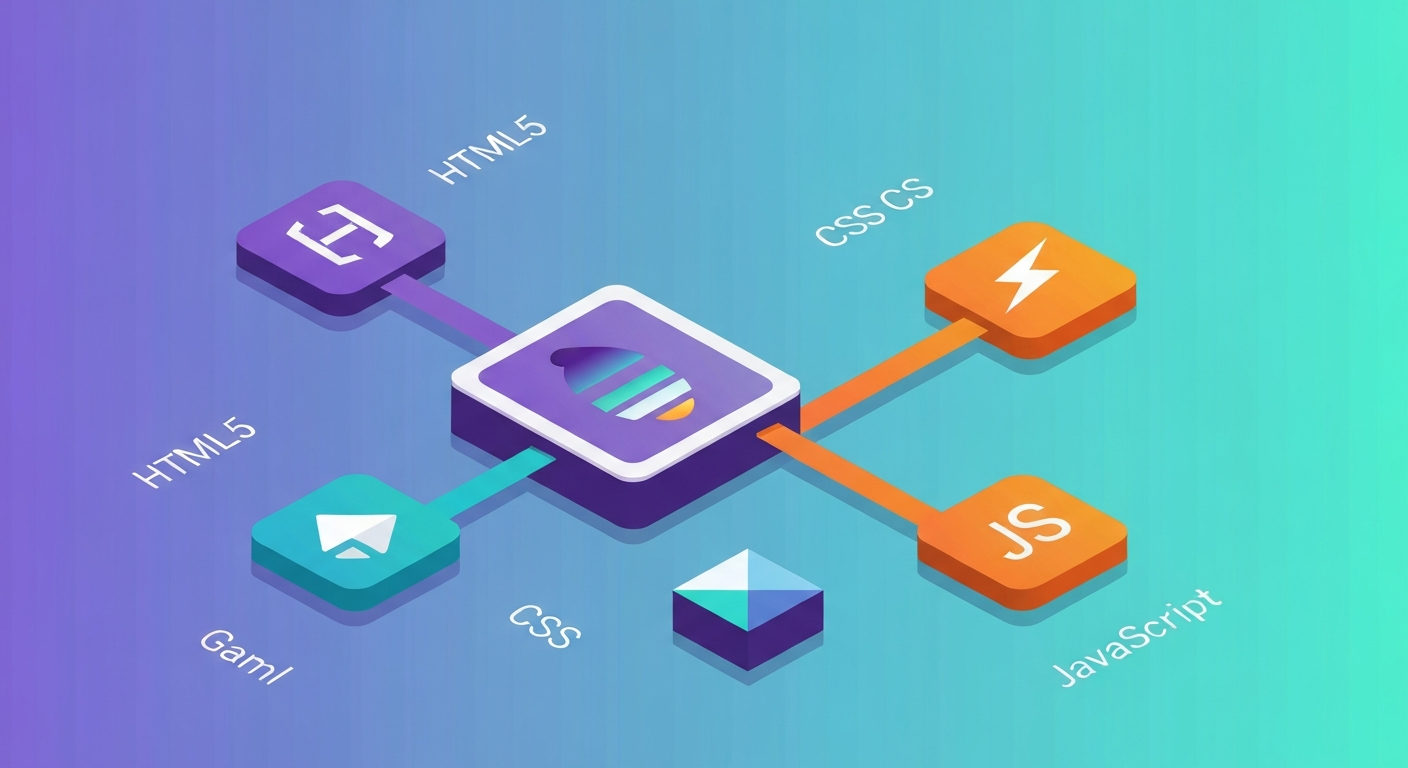
Deploying your HTML5 game involves hosting your game’s files (HTML, CSS, JavaScript, assets) on a web server or platform. This makes your game accessible to players worldwide via a URL. Without deployment, your game remains confined to your local machine.
> Deploying your HTML5 game makes it playable for everyone. This involves uploading your game’s static files (HTML, CSS, JavaScript, assets) to a web server or a platform like GitHub Pages, Netlify, or itch.io, making it accessible via a unique URL.
The simplest way to deploy a static HTML5 game is to host its files on a web server. Since HTML5 games are essentially a collection of web files, they don’t require complex server-side processing (unless you’re building a multiplayer game with a backend, which is a much more advanced topic).
Here are common deployment options:
- Static Hosting Services:
- GitHub Pages: If your game’s code is already on GitHub, GitHub Pages is an excellent, free option for hosting static sites. You can point a repository to host your game, and it becomes accessible via a GitHub Pages URL.
- Netlify: Netlify offers a generous free tier for hosting static websites and web applications. It integrates seamlessly with Git repositories, allowing for automatic deployments whenever you push changes.
- Vercel: Similar to Netlify, Vercel provides free hosting for static sites and frontend frameworks, with excellent Git integration.
- Game Distribution Platforms:
- itch.io: This platform is extremely popular with indie game developers. You can upload your game files (often as a
.ziparchive) and create a dedicated game page. Players can then download or play your game directly in their browser (if HTML5). It’s a fantastic place to share your work and potentially gain an audience. - Game Jolt: Another platform similar to itch.io, allowing developers to host and share their games.
The process is generally straightforward:
- Package Your Game: Ensure all your game files (your
index.html, all.jsfiles,.cssfiles, and yourassetsfolder containing images, sounds, etc.) are organized correctly in a project folder. - Choose a Platform: Select one of the hosting services or platforms mentioned above.
- Upload Your Files: Follow the platform’s instructions to upload your game files. For static hosting services, this often involves connecting your Git repository or dragging and dropping your project folder. For platforms like itch.io, you’ll typically upload a compressed archive of your game.
- Access Your Game: Once uploaded and processed, your game will be available at a unique URL.
For instance, deploying to itch.io is as simple as creating a new project, uploading your game files, configuring some basic settings (like how to run an HTML5 game), and hitting publish. It’s a remarkably low barrier to entry for getting your game in front of players.
[LINK:deploying-your-html5-game-to-itchio]
12. Common Pitfalls and How to Avoid Them
New indie game developers often face similar challenges, such as scope creep, neglecting performance, and poor asset management. Being aware of these common mistakes can help you navigate your development journey more successfully. Learning from others’ mistakes is a significant shortcut.
> Beginners in HTML5 game development commonly fall into traps like over-scoping projects, ignoring performance early on, and inefficient asset integration. Awareness and proactive strategies, such as strict scope management and regular testing, are key to avoiding these pitfalls.
Here are some common pitfalls and actionable advice on how to overcome them:
- Scope Creep: This is when you keep adding features beyond your original plan. As mentioned in section 1, the antidote is rigorous planning and a commitment to your initial scope. Be disciplined. If a new feature pops into your head, write it down for a future update or a sequel, but don’t let it derail your current project.
- Neglecting Performance: It’s easy to get caught up in making features work and forget about how smoothly they run. Early optimization is much easier than trying to fix performance issues later. Regularly test your game on less powerful devices, profile your code, and always think about efficiency.
- Poor Asset Management: Loading unoptimized, huge assets will kill your game’s loading times and performance. Always compress your images and audio files. Use sprite sheets where appropriate. Understand the file formats and choose the best one for the job. It’s also crucial to organize your asset files logically within your project folder.
- Ignoring User Experience (UX) and User Interface (UI): A game might be technically sound, but if it’s confusing or frustrating to interact with, players won’t stick around. Pay attention to how players navigate menus, control their characters, and receive feedback. Clear UI elements and intuitive controls are essential.
- Not Testing Enough: Bugs are inevitable. The more you test your game, the more bugs you’ll find and fix. Test across different browsers and devices. Get friends or fellow developers to play your game and provide feedback. Playtesting is invaluable.
- Getting Stuck in “Tutorial Hell”: While tutorials are great for learning, at some point, you need to break away and build your own thing. Apply what you’ve learned to your unique project. Don’t just follow tutorials step-by-step; try to understand the underlying principles and adapt them.
- Giving Up Too Soon: Game development is challenging, especially for solo developers. There will be frustrating moments. Remember why you started, celebrate small victories, and seek support from the developer community when you need it. Persistence is key.
